We earn a commission if you buy through our links, at no extra cost to you.
Best Laptop for Kids Ages 8 to 12 in 2026
Choosing a real laptop for a child aged 8 to 12: Chromebook vs Windows vs Mac, parental controls from Google, Microsoft and Apple, storage, and spills.
At a glance
For a child aged 8 to 12 whose school uses Google tools, the Acer Chromebook Plus 514 is the simplest fit, with Google Family Link controls. The Acer Aspire Go 15 is a Windows option that ships in S mode, and the MacBook Air 13 (M5) suits families already using Apple Family Sharing.
When a child turns 9 or 10, the family tablet usually stops being enough. Homework gets longer, a teacher wants a typed report, and the shared computer in the kitchen gets crowded. A real laptop is the next step, and it raises questions a toy never does: which operating system, how to control what your child can open, how long it should last, and what happens when someone spills juice on the keyboard.
This guide is written for parents of children roughly 8 to 12. That age range describes the reader we have in mind, not a rating from any manufacturer, and none of the manufacturer pages we opened gives an age range for these laptops. We also limit this to real laptops. We do not cover toy laptops or gaming laptops for this age, because they solve a different problem. We do not test products ourselves, so what follows comes from the manufacturers’ and platform makers’ own pages, and we flag what we could not confirm. For the full lineup, see our best laptops of 2026 comparison.
Start With the School
The most useful call you can make before buying is to your child’s school. Ask whether the school issues a device, whether it requires a particular one, and which tools the teacher uses.
Many US classrooms use Google Classroom. Google describes it as a tool schools can use to streamline assignments, boost collaboration and foster communication, available on the web and as a mobile app, and connected to Gmail, Google Docs and Google Calendar. Students follow coursework, hand in assignments and check feedback and grades, and Google says guardians can receive email summaries of their student’s work. That does not mean you need a Chromebook, since Classroom runs in browsers on other laptops too. It does mean a Chromebook fits that routine without extra setup.
If the school hands out its own device and your child needs a home laptop too, the school’s tools are the checklist. A web-based routine opens almost every option below.
Chromebook, Windows or Mac: What Changes for a Child
Chromebook. ChromeOS runs the Chrome browser, web apps, Google Workspace and Android apps from Google Play on supported devices. It does not run standard Windows or Mac programs. For a child, that limited menu is partly the appeal: there is less to install and less to go wrong. The catch is the Auto Update Expiration date. Google’s policy page says ChromeOS devices receive 10 years of updates, counted from the platform’s release date rather than your purchase date, and each model has an “Automatic updates until” date. Google’s own advice is to check that date when making a purchasing decision.
Windows. A Windows laptop opens the widest range of software, from school programs to your own. Some models ship in S mode, which can serve as a built-in guardrail. Windows also has a family tool, Microsoft Family Safety, described below.
Mac. A MacBook is the most expensive way to start, but it can last a long time and works naturally if your family already uses iPhones and iPads. Parental controls come through Family Sharing and Screen Time.
Parental Controls: What Each Platform Says It Does
None of these is a promise of safety. They narrow choices, and they work best when your child knows the rules and why they exist. Here is what the official pages say.
Google Family Link on a Chromebook
For Chrome on a Chromebook, Google says you can block or allow specific sites, and that with the “Try to block explicit sites” setting on, Chrome tries to block sexually explicit sites. You can approve or deny your child’s requests to visit blocked sites, control whether sites can ask for location, camera or microphone access, and stop the child from installing extensions from the Chrome Web Store. Incognito mode is turned off while your child is signed in to Chrome with a Family Link-managed account. The page we opened gives no age thresholds.
For time limits, Google says you can set a Chromebook to lock after a certain amount of use. Daily limits apply to each device separately, your child gets a notification before it locks, and you can add bonus time for the day. In the Family Link app you open your child’s profile, choose Screen time, then Time limits, and set a weekly schedule.
Microsoft Family Safety on Windows
Microsoft says you can set screen time online at family.microsoft.com or with the Microsoft Family Safety app. You can only set limits for accounts added to your Family Safety group, and limits can only be set on devices connected to that family group. That means your child needs their own Microsoft account first. You can set time ranges and total daily hours for each day, and limits can be turned off from the same menu.
Apple Screen Time on a Mac
Apple says Family Sharing must be set up and each family member needs their own Apple Account. If you manage your child’s account through Family Sharing, the organizer or a parent sets the child’s Screen Time passcode on the parent’s device, not the child’s. Time Allowances set a daily time budget across categories such as entertainment, games and social media, and Schedules let you pause device use. Content & Privacy Restrictions manage things like age ratings for the Music, Apple TV and Books apps. Apple describes these controls as built into iPhone, iPad and Mac.
The Practical Questions Parents Ask
Durability and Spills
None of the pages we opened for the three laptops below promises spill resistance or drop protection, and we do not either. Plan on a padded sleeve, a backpack with a laptop compartment and a house rule about drinks near the keyboard. Ask the seller what protection plan, if any, is available, and read its terms before you buy. A laptop that costs less hurts less when it is dropped, and that matters for a younger child.
Storage
A child’s laptop does not need a huge drive if files live in the cloud, but a small one fills faster than you expect. Windows and its updates take a large share of a small drive. Of the three models below, the Chromebook Plus 514 listing shows 256GB, the Aspire Go 15 listing shows 128GB, and the MacBook Air listing shows 512GB.
Screen Time as a Family Rule
A control can enforce a limit, but the rule should come from you. Many families write down when and where the laptop is used, for example in a shared room for homework and charged outside the bedroom overnight. We are not making health claims here. The point is that a rule your child understands is easier to keep than a setting they try to get around. Both Google and Microsoft say limits can be adjusted or turned off, so you can loosen them as your child grows.
Our Picks for Ages 8 to 12
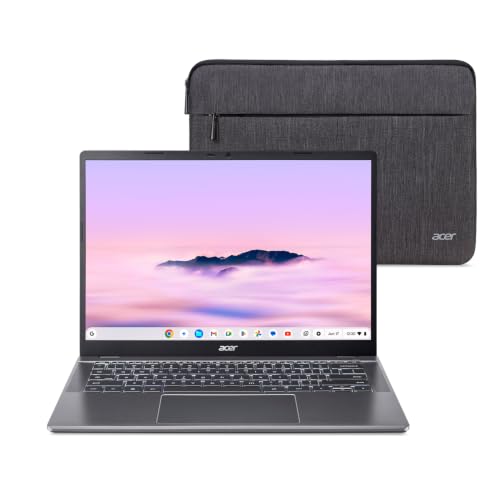
The School-Friendly Pick: Acer Chromebook Plus 514
A 14-inch touchscreen Chromebook that fits Google Classroom and Family Link. A fit for families whose school already runs on Google tools.
The listing names a Core i3-1315U, 8GB of memory, a 256GB SSD, a 14-inch touch display and Wi-Fi 7. A community database we cite in the profile lists the weight at 3.31 lb, which is light enough for a school bag. It handles browsing, Google Docs, streaming and video calls. It does not run standard Windows or Mac programs, and the memory is soldered.
Check the Auto Update Expiration date for this exact model before you order, since a date several years away is a good sign for a laptop a child will use through middle school. The listing photo shows a sleeve, but we do not claim one is included. Check the listing. Our Acer Chromebook Plus 514 profile covers the details.
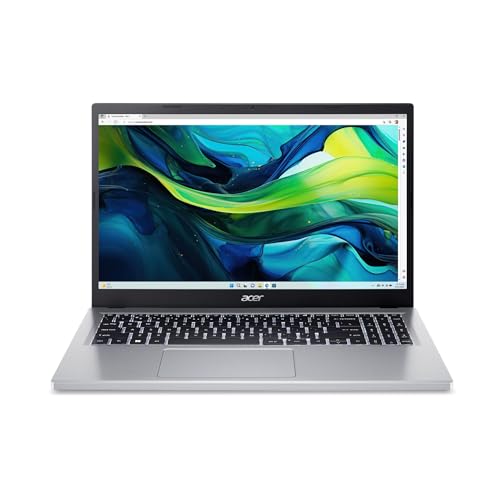
The Low-Cost Windows Pick: Acer Aspire Go 15
A 15.6-inch Windows laptop that ships in S mode, which limits installs to the Microsoft Store. A fit for a child who needs Windows for basic schoolwork.
The listing names a Core i3-N305, 8GB of memory, 128GB of storage, a 15.6-inch Full HD display and Windows 11 Home in S mode. This is a 2024 design that is still sold, so do not expect it to be new. A spec sheet for a sibling model lists it at about 3.77 lb, so it is heavier and bulkier than the Chromebook in a school bag.
Microsoft says that in S mode you can only install apps from the Microsoft Store, that switching out is free, and that switching is one-way. For a child, the limit can be a guardrail, but it also blocks programs outside the Store. The 128GB drive is small, so plan on cloud storage. It suits basic tasks only. Read our Acer Aspire Go 15 profile before you decide.
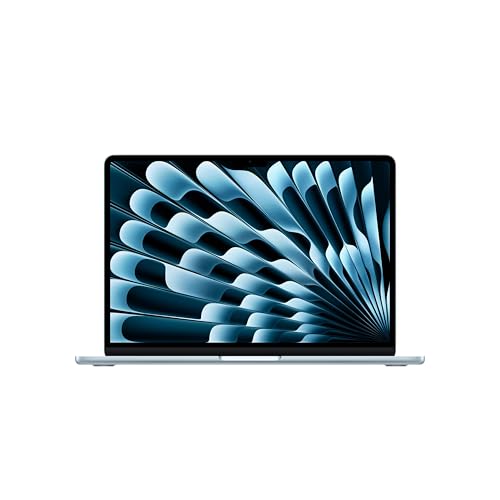
The Apple-Family Pick: MacBook Air 13 (M5)
A light 13.6-inch Mac that works with Family Sharing and Screen Time. A fit for families that already use iPhones and iPads.
According to Apple, this configuration has the M5 chip, 16GB of unified memory and a 512GB SSD, a 13.6-inch display, a 12MP camera and Touch ID, and it weighs 2.7 lb. Apple rates the battery for up to 18 hours of video streaming, a ceiling measured under Apple’s conditions. It has two Thunderbolt 4 ports and a MagSafe 3 port, and no HDMI port or card slot.
It is the premium choice here and probably more laptop than a 9-year-old needs, but it can last into high school and beyond. It makes the most sense when your family already has Apple devices, because Screen Time works through Family Sharing. Read the MacBook Air 13 (M5) profile for what to confirm on the listing.
What We Do Not Recommend for This Age
We do not recommend gaming laptops for children 8 to 12. They tend to be heavier, and they invite a conversation about screen time that a regular laptop does not. If your child wants to play, a family rule and the controls above go a long way, and a standard laptop can handle browser games and many school-friendly titles. We also skip toy laptops, which are not real computers and will not run schoolwork.
Before You Order
- Ask the school which tools your child uses.
- Choose the platform that matches your family’s other devices.
- Create the child’s family account, whether Google, Microsoft or Apple, before the first use.
- Confirm the exact configuration, seller and warranty on the listing.
- Check the return window and the Chromebook’s update date.
For a wider view of the lineup, including laptops better suited to older students, see our ranking of nine laptops.
Sources
- Use Google Family Link on Chromebooks to manage Chrome, Google Family Link Help
- Manage your child’s screen time, Google Family Link Help
- Set screen time limits across devices, Microsoft Support
- Use Screen Time to manage your child’s iPhone or iPad, Apple Support
- Set schedules and Time Allowances with Screen Time on Mac, Apple Support
- Windows 11 in S mode FAQ, Microsoft Support
- Google Classroom overview, Google Classroom Help
- Auto Update policy, Google Chrome Enterprise Help
Frequently asked questions
Is a Chromebook a good first laptop for a child?
It is a common choice, mainly because many schools use Google Classroom, which Google describes as a tool teachers use for assignments, collaboration and communication, working on the web and as a mobile app. A Chromebook also pairs with Google Family Link for controls. Check what your child's school uses, since some districts specify a device.
Can I limit how long my child uses the laptop?
Yes, on all three platforms with a family account. Google says Family Link daily limits can lock a Chromebook after a set time and apply to each device separately. Microsoft Family Safety sets time ranges and daily hours for accounts in your family group. Apple's Screen Time offers schedules and time allowances through Family Sharing.
Do parental controls make a laptop safe?
No. They narrow what a child can reach and when, and the pages we read do not promise safety. Google, for example, says its explicit-site setting tries to block sites. Treat controls as one tool next to a conversation about what your child does online and where the laptop is used.
What is Windows S mode and is it good for a child?
Microsoft says Windows 11 in S mode only installs apps from the Microsoft Store and uses Microsoft Edge for browsing. Switching out is free and one-way. For a child, the install limit can be a useful guardrail, but it also blocks some school programs, so check what your child needs first.
Should I buy a gaming laptop for a child who likes games?
We do not recommend one for this age group. Gaming laptops are heavier, drain the battery quickly and put more money at risk in a backpack. If your child wants to game, consider setting time limits on a standard laptop and talking about which games are appropriate for your family.
How much storage does a child's laptop need?
For schoolwork, documents and streaming, a modest drive works if files live in the cloud. The Acer Aspire Go 15 listing shows only 128GB, which fills quickly once Windows updates and a few programs take space. The Chromebook Plus 514 listing shows 256GB, and the MacBook Air listing shows 512GB.